What is MaPC and How Does It Enhance Gaming on Mac?
MaPC is a powerful application designed to run DirectX 9, 10, and 11-based Windows games directly on Macs with Apple Silicon chips, such as M1, M2, and M3. It eliminates the need for Boot Camp or separate Windows PCs by providing a native-like environment that supports a wide range of popular gaming titles. Unlike traditional emulators or virtual machines, MaPC seamlessly translates Windows graphics API calls into Metal, optimizing game performance and stability.
Supported Games and Compatibility Range
MaPC primarily targets games that utilize DirectX 9, 10, and 11, covering a vast spectrum of AAA and indie titles. Examples include classic FPS, third-person shooters, and role-playing games. It handles older, low to mid-range graphics games efficiently, allowing for a fluid experience even on integrated GPU hardware. However, newer titles that depend on DirectX 12 or Vulkan may encounter compatibility issues due to API differences. Developers continually update support for popular games based on user feedback.
Simple Steps to Install and Set Up MaPC
To begin gaming on your Mac with MaPC, follow these straightforward steps:
- Download MaPC: Grab the latest beta version from the official website and drag it into your Applications folder.
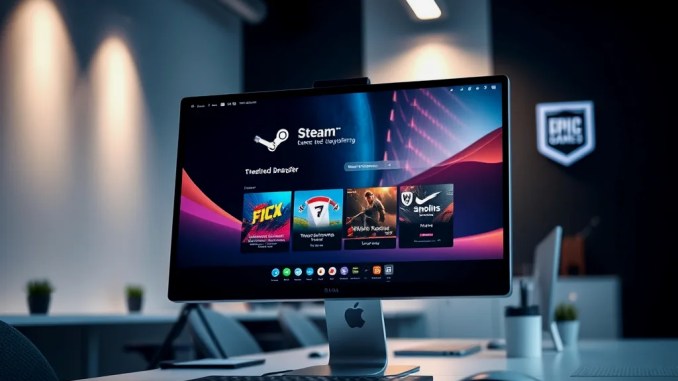
- Authorize and configure: Launch MaPC and grant necessary permissions. Link your gaming store accounts like Steam or Epic Games via OAuth—this ensures secure access without storing passwords.
- Import your game library: Let MaPC scan your accounts or manually add game folders. It detects compatible titles ready for installation.
- Install and tweak: Select games to download and install. Adjust graphics settings according to your system performance for optimal gameplay.
Maximizing Performance and Troubleshooting Common Issues
Expect variation in game performance depending on titles and system specs. For better results:
- Close background applications to free system resources.
- Configure in-game graphics to medium or low for smoother play on integrated GPUs.
- Use a wired network connection for reduced latency during online gaming.
If games fail to launch or experience graphical glitches, verify that your macOS and MaPC versions are up to date. Reinstall the app if necessary, and double-check account links.
Step-by-Step Play: Launching a Game with MaPC
Here’s how to play your favorite game using MaPC:
- Open MaPC and sign in with your gaming platform account.
- Choose the game from your library or import a new title.
- Click “Install” and wait for the download to complete.
- Adjust graphics settings to match your system’s capabilities, focusing on resolution, shadows, and effects.
- Start the game directly from MaPC and enjoy native-like performance.
Essential Tips for a Seamless Gaming Experience
To ensure smooth gaming sessions:
- Keep your macOS updated to benefit from latency reductions and compatibility patches.
- Maintain sufficient disk space to prevent slow load times.
- Use high-quality peripherals, such as as gaming mice or controllers, and ensure they are properly configured.
- Regularly check for MaPC updates that address bugs and improve compatibility.
Addressing Common Questions About MaPC
Can I play any Windows game on Mac with MaPC? MaPC supports most DirectX 9, 10, and 11 games, but not all titles work flawlessly. Games relying on DirectX 12, Vulkan, or anti-cheat systems may face limitations. Is MaPC free to use? Yes, MaPC offers a free beta. Future versions might include premium features. Do I need a Windows license? No. MaPC runs games without needing a Windows OS installation, translating DirectX calls into Metal. How do I troubleshoot performance issues? Focus on updating graphics drivers, reducing in-game graphics settings, and ensuring sufficient system resources. If problems persist, consult the support documentation or community forums. Creating a gaming setup on Mac with MaPC transforms the way Mac users access Windows-exclusive titles. By following these comprehensive setup and optimization steps, users unlock a new world of gaming without leaving macOS, enhancing productivity and entertainment alike.