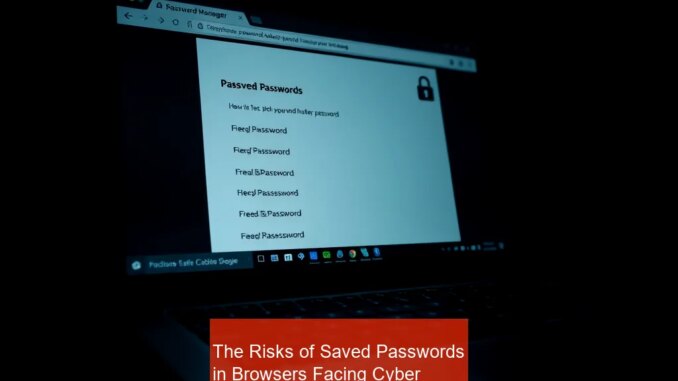
The Hidden Dangers of Browser Save Password Features and How to Thwart Them
Every time you opt to save passwords in your browser, you might feel safe but unknowingly open the door to serious security breaches. Browsers like Chrome, Firefox, and Edge store login credentials and session tokens locally, creating tempting targets for cybercriminals. If these are compromised, attackers can hijack your sessions or gain unauthorized access to sensitive information. To protect yourself, it’s crucial to understand the risks involved and adopt best practices, such as disabling password saving features and employing enhanced authentication methods.
Why You Should Avoid Relying on Browser Stored Passwords
While saving passwords in your browser offers convenience, it introduces significant vulnerabilities. Attackers can exploit stored credentials through local malware, cache extraction, or browser vulnerabilities. Once they access these passwords, they can impersonate users, conduct fraudulent transactions, or even access connected accounts without your knowledge.
Furthermore, many browsers do not encrypt stored passwords adequately or rely on unprotected local storage, increasing the chance of exposure if the device gets lost, stolen, or infected. Hence, depending solely on your browser’s save feature compromises your digital safety.
The Risks of Tracking Cookies and Persistent Session Data
Cookies and session tokens stored for convenience are powerful tools for user experience but dangerous for security. Attackers can intercept these data points via session hijacking or cookie theft, especially over unsecured public Wi-Fi. Once they obtain these session identifiers, hijacking active sessions becomes a simple task, leading to unauthorized access.
To avoid such risks, always clear cookies regularly, disable unnecessary cookie permissions, and avoid trusting third-party cookies on sensitive sites. Using browser extensions that manage or block cookies can add an extra layer of security.
Best Practices for Managing Browser Passwords and Cookies
- Disable automatic password saving: Turn off browser features that prompt to save passwords to prevent local storage of sensitive data.
- Use dedicated password managers: Tools like LastPass, 1Password, or Dashlane generate and store complex, unique passwords for each account with zero reliance on browser storage.
- Enable two-factor authentication (2FA): Always activate 2FA wherever possible. Even if a password is compromised, 2FA adds an essential security barrier that prevents unauthorized login.
- Regularly clear cookies and cache: Schedule routine cleaning of stored cookies and session data to minimize attack vectors during sessions.
- Utilize secure, encrypted connections: Verify HTTPS connections and avoid logging into sensitive accounts over unsecured Wi-Fi networks.
Why Public Wi-Fi Is a Hotbed for Cyber Attacks and How to Stay Safe
Public Wi-Fi networks, such as those in cafes, airports, or hotels, pose substantial dangers. Cybercriminals target these networks to intercept unencrypted traffic and steal authentication credentials, cookies, or session identifiers. Once they succeed, they can impersonate you or hijack your sessions without your consent.
To safeguard your activities:
- Use a reputable VPN: Establish an encrypted tunnel for all online activities, making it nearly impossible for attackers to spy on your data.
- Check for HTTPS: Always verify that the website URL begins with HTTPS, indicating a secure connection.
- Favor cellular data: When handling sensitive transactions, prefer cellular networks or personal hotspots rather than public Wi-Fi.
- Avoid logging into critical accounts: Refrain from accessing bank accounts, email, or work portals over unsecured networks unless protected by a VPN.
Crafting Strong, Unique Passwords: A Step-by-Step Guide
Strong passwords form the cornerstone of digital security. Here’s how to generate and manage them effectively:
- Determine a password length of at least 12 characters, combining upper and lower-case letters, numbers, and symbols.
- Create complex, unpredictable combinations. Avoid common phrases, repetitions, or personal data.
- Use a password manager: Store your passwords securely and avoid reusing the same credentials across multiple sites.
- Regularly update passwords: Change them periodically, especially after a security breach.
- Activate two-factor authentication (2FA) on all critical accounts for an added layer of security.
Understanding Biometrics: Face ID and Fingerprint Recognition Risks and Benefits
Biometric authentication methods like Face ID and fingerprint recognition offer unmatched convenience and provide a robust layer of security when properly implemented. However, users must understand their limitations:
- Data permanence: Unlike passwords, biometric traits cannot be changed if compromised. A breach exposing your facial data or fingerprints can have lifelong consequences.
- Local storage: Ensure biometric data remains stored securely within your device, not transmitted or stored on cloud servers without encryption.
- Multi-factor necessity: Use biometrics as one part of a comprehensive security strategy. Pair them with strong passwords and 2FA.
While biometric security greatly enhances user authentication, it should serve as a supplementary safeguard rather than the sole measure.
Social Engineering and Online Profiling: Protecting Your Personal Data
Sophisticated attackers exploit personal details shared publicly on social media platforms to craft targeted phishing attacks. They gather information such as your
bdob, pet names, favorite locations, or daily routines, then use this data to bypass security questions or create convincing scams.
To minimize risks:
- Limit personal data sharing: Keep sensitive information private and be cautious about privacy settings.
- Regularly audit your online presence: Search your name and review public profiles for overshared information.
- Use complex, unpredictable answers for security questions, avoiding common or publicly known facts.
- Be vigilant for phishing attempts: Always verify email sources and refrain from clicking suspicious links or sharing confidential data.
Actionable Cybersecurity Checklist for 2024
| Step | Implementation |
|---|---|
| 1. Disable browser’s password saving feature | Access browser settings and turn off automatic password saving. Use dedicated password managers instead. |
| 2. Generate unique, strong passwords for each account | Utilize a trusted password generator and store credentials in a secure password manager. |
| 3. Enable two-factor authentication (2FA) | Activate 2FA on all services supporting it—especially banking, email, and cloud storage. |
| 4. Protect public Wi-Fi activity | Always connect via VPN, verify HTTPS connections, and avoid sensitive transactions over public networks. |
| 5. Employ biometric authentication wisely | Use biometrics as part of multi-factor authentication, ensuring local data storage and security. |